UNIVERSITY OF WISCONSIN River Falls


Documentation
Delete a Page or Document
Deactivate a Page
Deactivating a page allows you temporarily make the page inaccessible to visitors.
Click Actions (dark blue menu bar) > Deactivate Page.
Once deactivated, you can submit changes and it will not become active again until you click the Activate button (next to the submit button).
Delete a Page
- Choose Actions > Click the Delete Icon in the dialog box
BUT...
Before you delete a page (or document, or image), you need to check to see whether there are any referring pages that link to the page you want to delete.
Go to the page you want to delete. You can be in "Published" mode to do this.
Check for referring pages by clicking "Links" in the dark blue menu bar.
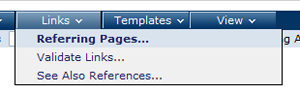
You will see a list of all pages that link to the page you want to delete.
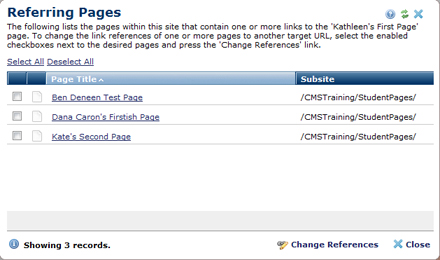
Cool feature: You can change the link on all the pages that link to the page you are deleting and have them go to a new page that you select.
To change the links on all the pages at once, click "Select All."
Then click "Change Reference"
Choose the new page to which you will link the referring pages, either from the current subsite or use Quick Find if the page is in a different subsite.
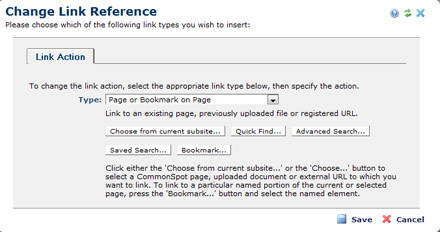
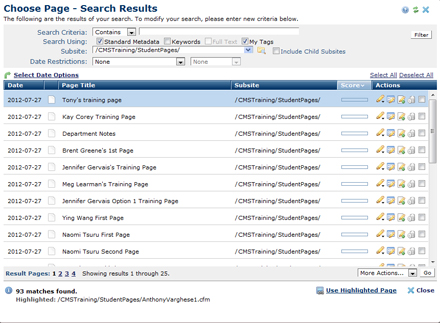
Click the new page to which the links should go, then click "Use Highlighted Page."
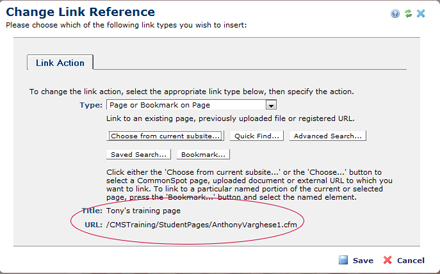
Verify the new link's page title and URL. Then Save.
Once you have cleared referring page links, you can delete the page.
Click Actions in the dark blue menu bar, then click "Delete Page.."
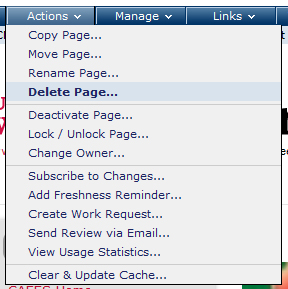
You should see the following screen. Click Delete.
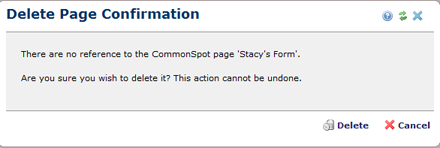
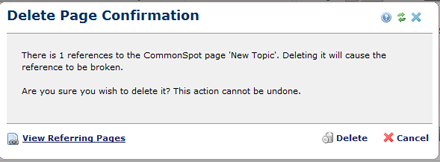
If you see this screen when you try to delete a page, you will need to view the referring page and remove the link on that page, or change the reference to link to a different page other than the one you are deleting (see above).
There are two other ways to delete pages.


